
GETTING STARTED / 02
Restore factory firmware
Scan the device QR code, copy its private link to your computer, and restore the default firmware with Chrome or Edge over USB-C.
Scan the QR code on the back
Use your phone camera to scan the device QR code on the back of your own AI Passport and open its device-specific page.
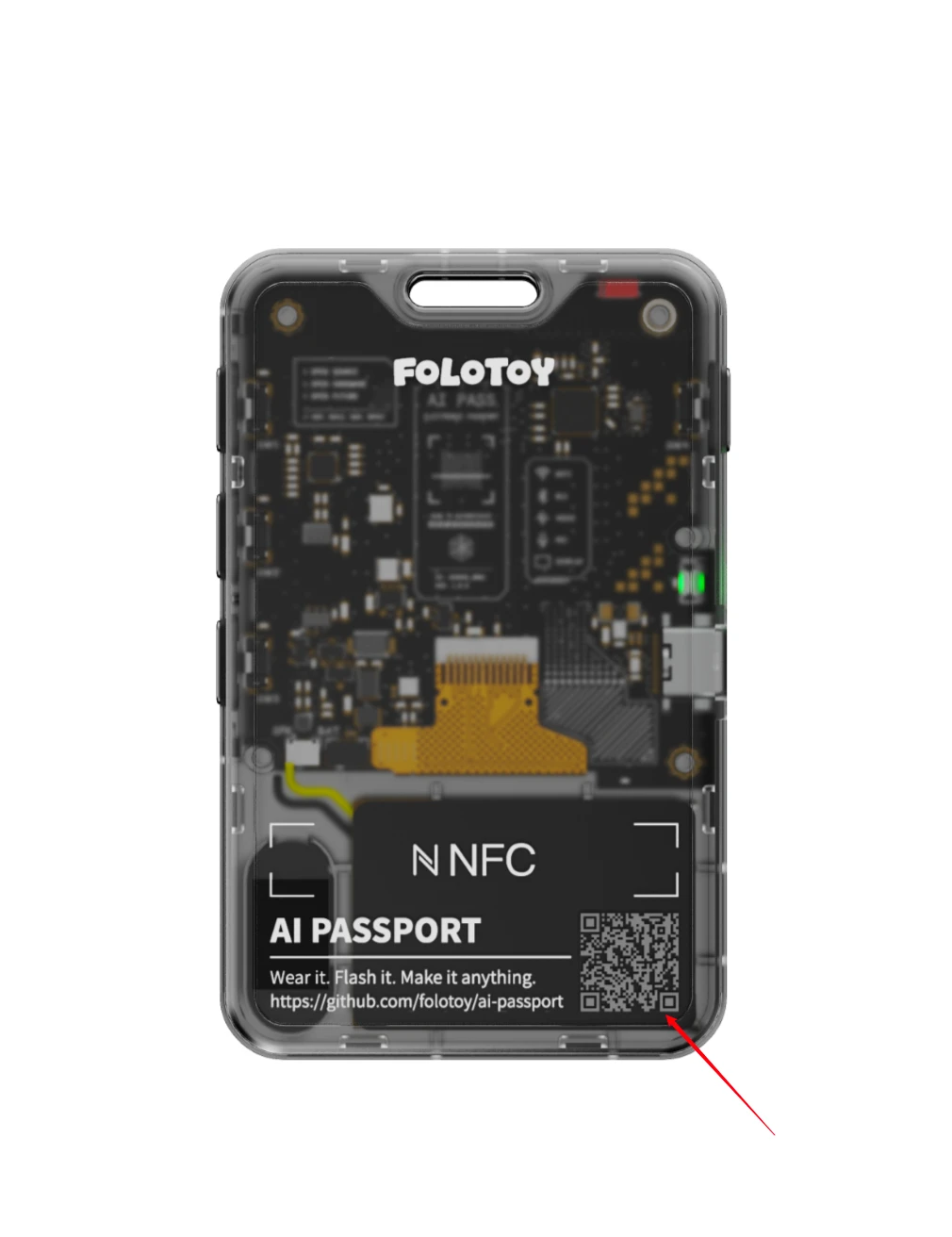
- Scan the QR code on your own device
- Do not scan the example QR code shown in this guide
Copy the complete link to your computer
In the recovery section at the bottom of the device page, select the prominent Copy device link to computer button. You can also copy the complete URL from the address bar. Transfer the link privately to your own computer and open it in desktop Chrome or Edge.
The link contains this device's SN and KEY. Send it only to your own computer, and never post or forward it publicly.
Connect over USB-C and power on
Use a data-capable USB-C cable to connect AI Passport to the computer, then hold the Power button on the left side to turn it on.
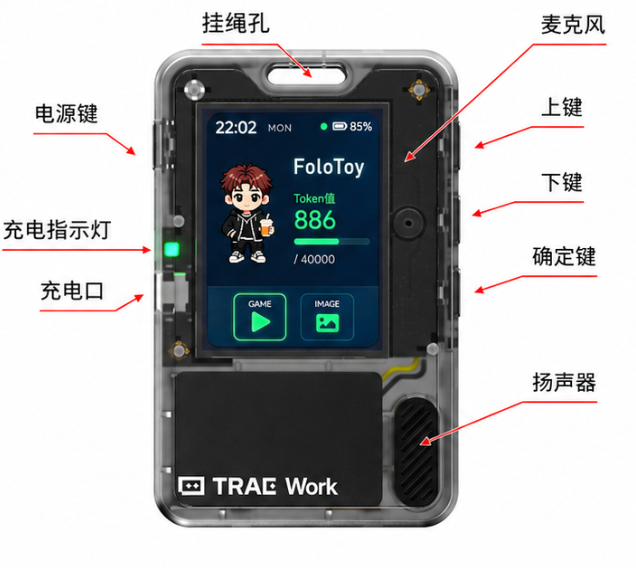
- Use a data-capable USB-C cable, not a charge-only cable
- Keep the device connected until recovery finishes
Open Restore default firmware
On the device page opened on your computer, scroll to the bottom and select Restore default firmware. On the recovery page, select Connect and verify device, choose the AI Passport USB port in the browser prompt, check the confirmation after verification, and then select Run full recovery.
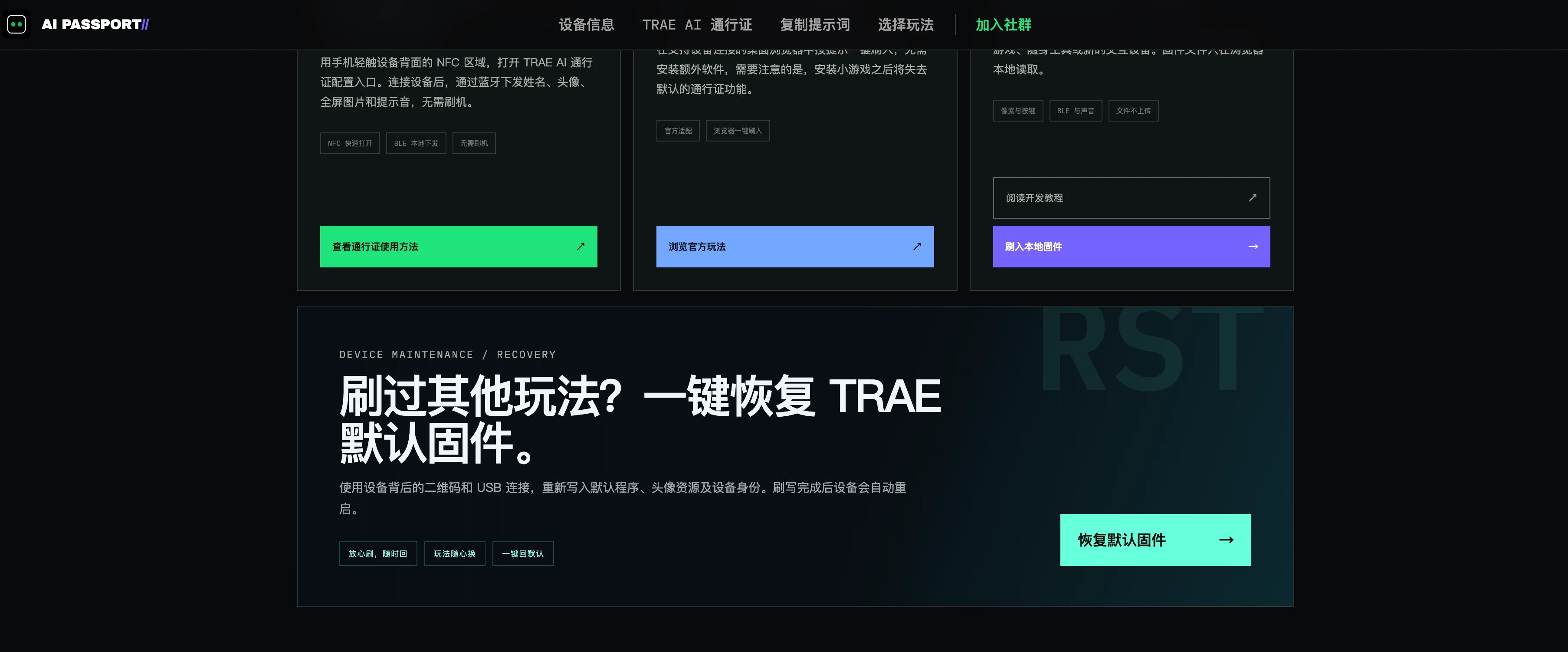
Choose the port containing USB JTAG/serial debug unit. Do not select a Bluetooth or headset device.
Wait for firmware recovery to finish
Keep the page open while the default firmware downloads, verifies, and writes. AI Passport restarts automatically after recovery; unplug the USB-C cable only after the page reports success. Then open the WeChat Mini Program, reconnect the device, and sync your Passport content.
- Do not unplug during recovery
- Do not close or refresh the browser page
- Disconnect only after the device restarts and the page reports success