
GETTING STARTED / 01
Getting started with AI Passport
Use the WeChat Mini Program to sync your profile and a full-screen image, then learn the controls, built-in game, and charging.
Turn it on and learn the buttons
Your AI Passport is ready to use as a digital badge right out of the box. Find the power button on the left and the Up, Down, and Confirm buttons on the right.
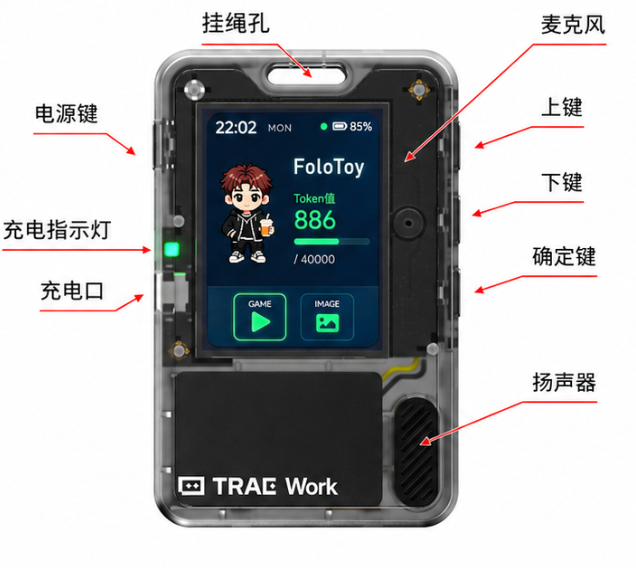
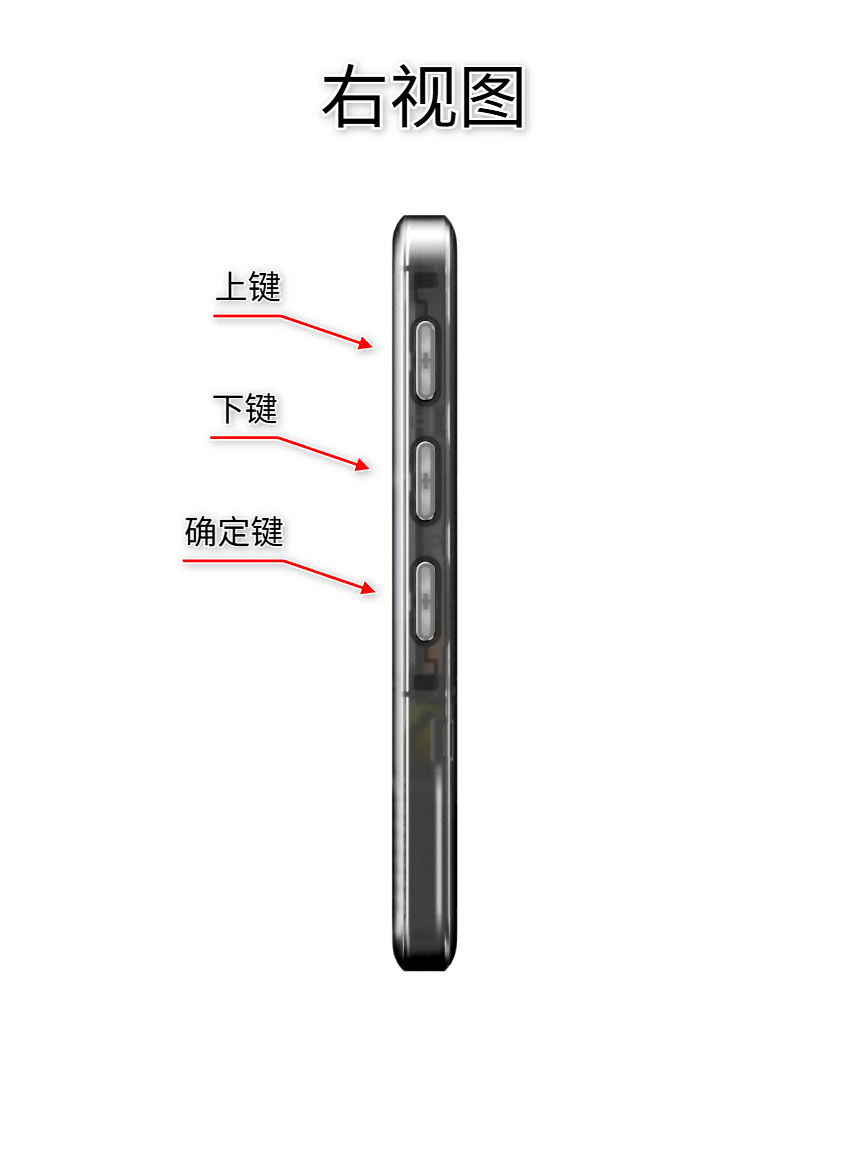
- Power on: hold the power button for 0.5 seconds until the screen lights up and opens the home screen.
- Wake: the screen turns off after a period of inactivity to save power; press any function button to wake it.
- Power off: hold the power button for 2 seconds.
Keep the factory app while you get familiar with the identity badge and its built-in game. You can explore other apps later.
Connect with the WeChat Mini Program
Turn on Bluetooth, open the AI Passport WeChat Mini Program, and keep the powered-on device close to your phone. Select your AI Passport under Nearby Devices to enter the content workspace.
If you have installed another app, restore the default firmware before using the Mini Program’s Passport features.
Scan the QR code on the back of your device, open its device page, and follow the recovery guide on your computer.
Default firmware recovery guide- Turn on system Bluetooth
- Keep AI Passport close to the phone
- Select and connect the nearby device
Add your profile and photos
Personalize your badge in the AI Passport WeChat Mini Program. Add your name, profile photo, and a short bio, or send an image to fill the screen. Your badge updates when the transfer finishes.
- Sync a name
- Sync an avatar
- Sync a short introduction
- Sync a full-screen image
Content is transferred locally over Bluetooth between the WeChat Mini Program and the connected device.
Try the built-in game
There’s a game built right into your badge. Use the three buttons on the right to navigate and play.
- Enter: use Up / Down on the home screen to select the Game tile, then press Confirm.
- Play: press Confirm to start; use Up / Down to control the game and short-press Confirm to dash or act.
- Restart or exit: press Confirm after the game ends to play again; hold Confirm to return to the home screen.
Charge AI Passport
Connect a USB-C cable to a charger or computer.
- The green charging indicator stays on while charging and turns off automatically when the battery is full.
- Check the indicator light to see if your device is charging. Charging status doesn’t appear on the screen.
WHAT'S NEXT / KEEP EXPLORING
The identity badge is only the beginning.
AI Passport includes a mini game out of the box. Discover more games, tools, and creative interactions shared by users in the App Library. Installing a new app overwrites everything currently on the device, so make sure you no longer need the existing contents. You can also follow the guides to create your own app and share it with the community.
Discover more apps↗