GETTING STARTED / 12
Build an AI Passport app with ZCode
Open the app project in Zhipu's ZCode and let a GLM coding agent build installable firmware, confirming each command along the way.
Get to know ZCode
ZCode is a desktop AI coding tool from Zhipu AI, built around its GLM coding models. It opens a local workspace where agents plan the task, edit code, run commands, and show changes and progress in a side panel.
- Developer: Zhipu AI (Z.ai)
- Platforms: macOS (Apple silicon and Intel), Windows (x64 and ARM64), Linux (beta)
- Requirements: a Zhipu account; GLM coding models require a GLM Coding Plan or available credit
- Version used in this guide: 3.16.3
Tested on macOS 26.6 (Apple silicon) on October 30, 2026, by installing the app and completing this guide's example task.
Download and install ZCode
Download the installer from the official site: zcode.z.ai. Use only the official download, not repackaged builds from other sources.
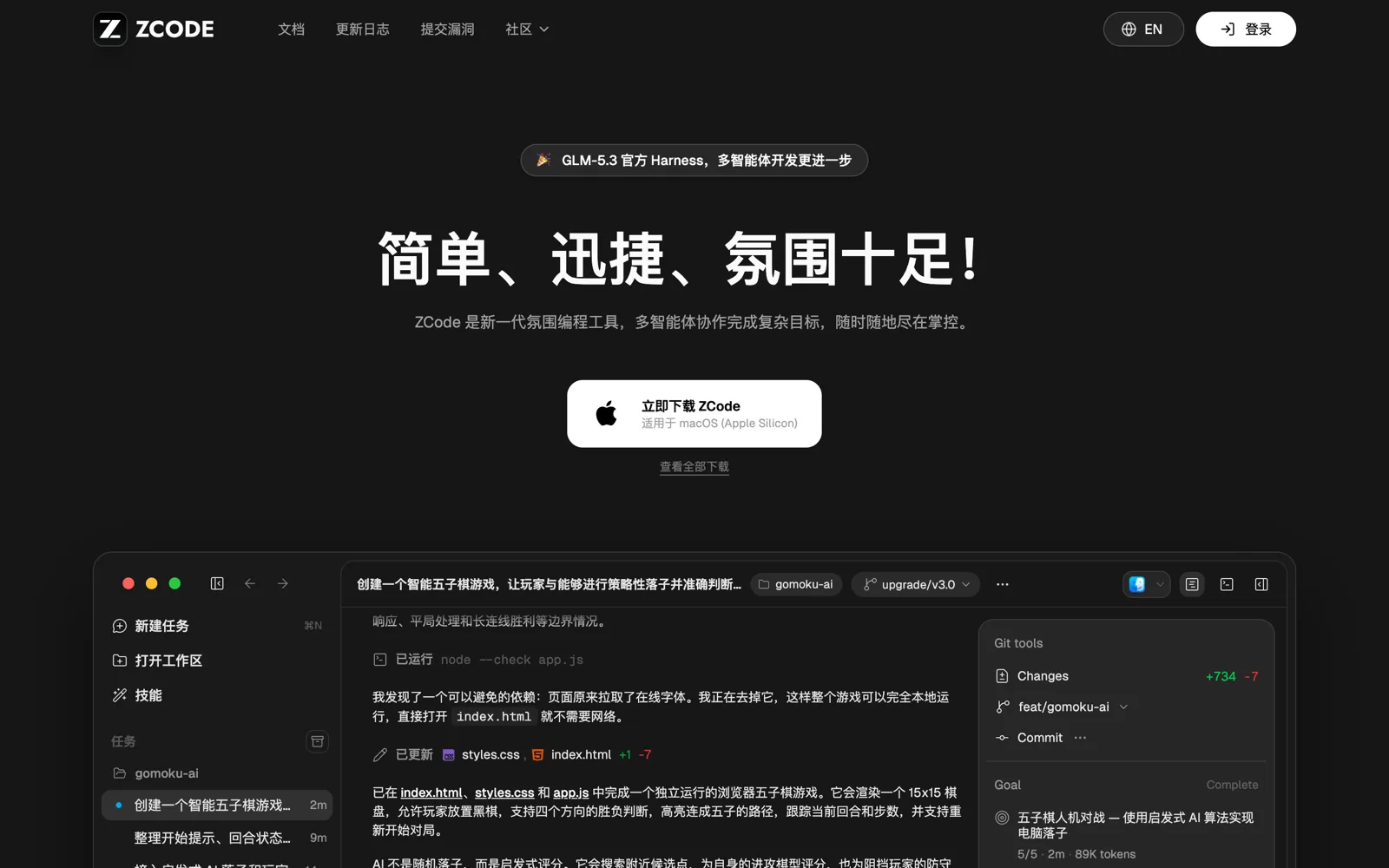
- On the official site, select the download button. Choose View all downloads for another platform or chip.
- macOS: open the .dmg and drag ZCode into Applications.
- Windows: run the .exe installer. On Linux, choose .deb, .rpm, or .AppImage.
Sign in and check the model
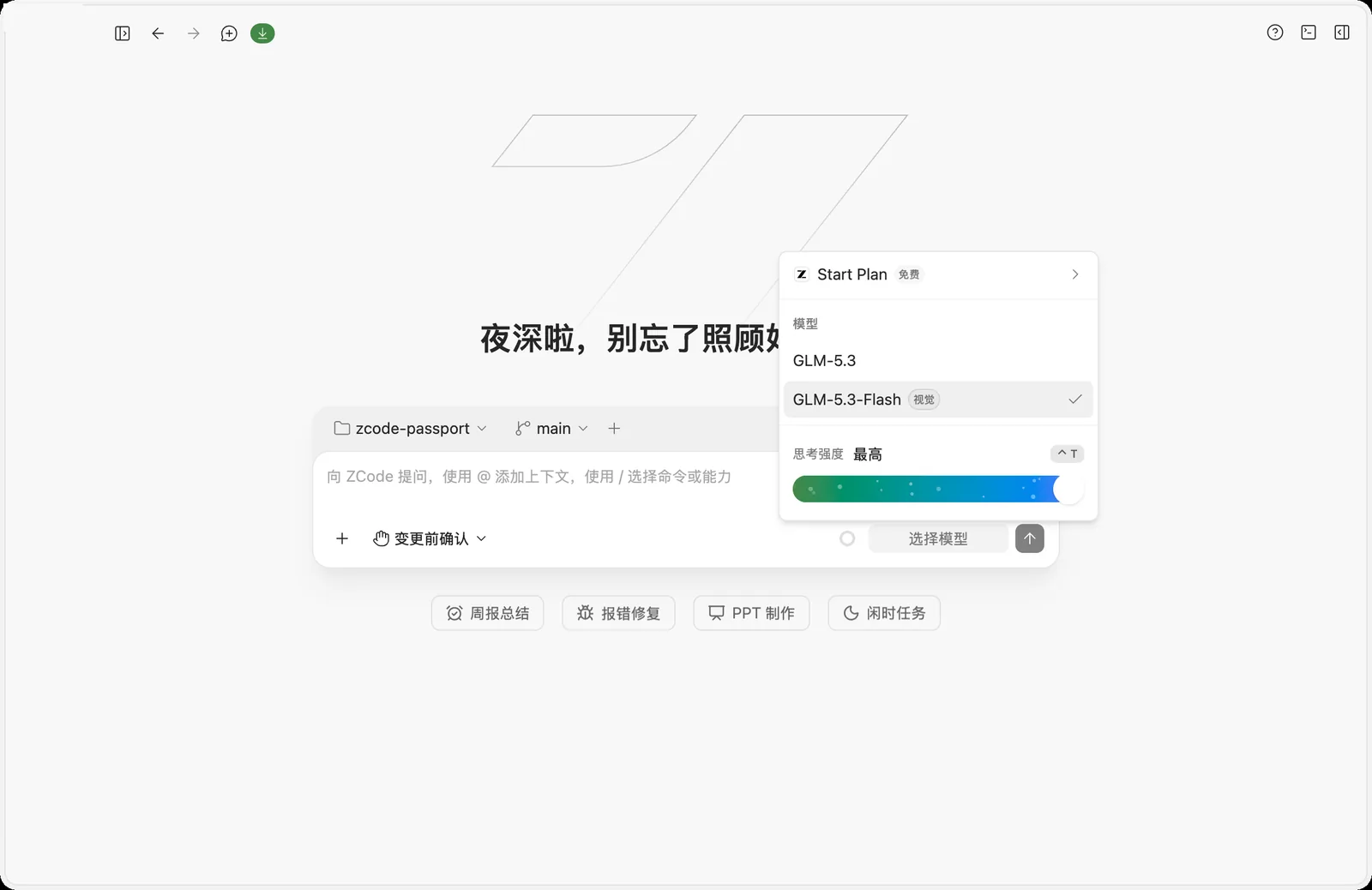
Sign in with your Zhipu account the first time you open ZCode, then check the model and permissions below the message box. This guide used GLM-5.3-Flash at the highest effort with Confirm before changes, so the agent asks before it edits a file or runs a new command.
Open the AI Passport project
Select New task (⌘N), then Select project → Create project above the message box. Enter a project name, select Choose folder to open the AI Passport project folder, then select Trust folder and create.
You can clone the project first with git clone https://gitee.com/FoloToy/ai-passport.git, or choose an empty folder and let the agent download the project from the prompt.
Send the build prompt
Start a new conversation, paste the prompt below, replace [ENTER APP REQUIREMENTS] with the app you want, and send it. This guide used the following example:
Build  using the complete project at https://gitee.com/FoloToy/ai-passport; reuse a local checkout if available.
Read AGENTS.md and docs/README.md first, then consult relevant documentation, hardware interfaces, and examples as needed. Prepare the environment and install the Skills required by the project.
Preserve existing changes and develop on a new branch. Reuse the BSP and design a fresh application UI instead of copying the demo; check font coverage for Chinese text. Ask when key requirements are unclear and handle the rest autonomously.
Run project validation and deliver merged firmware flashable from 0x0. Report test results and anything unverified. When finished, proactively ask whether to test on hardware; do not flash without confirmation.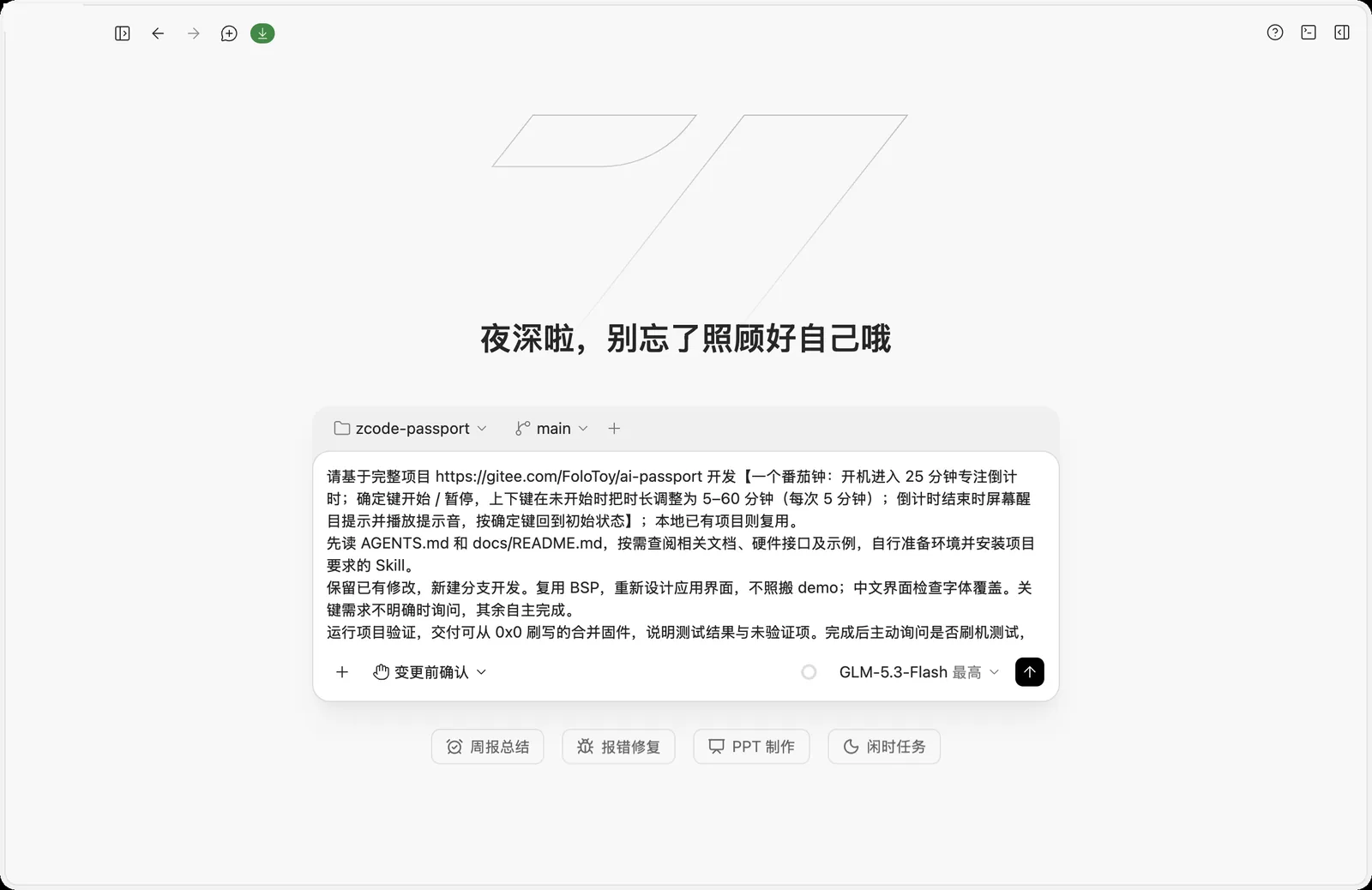
- a Pomodoro timer: start with a 25-minute focus countdown; Confirm starts or pauses it; before it starts, Up and Down change the length from 5 to 60 minutes in 5-minute steps; when time is up, show a clear alert and play a sound, and Confirm resets the timer
Let ZCode build and check the app
ZCode creates a feature/pomodoro-timer branch, installs the passport Skills the project requires, reads the docs, then writes the countdown logic, Chinese interface, and alert sound, and generates the Chinese font the interface uses. With Confirm before changes, each new command shows a Permission required card. Choose Always allow this command for read-only commands and in-project builds and tests, choose Allow for each file edit, and choose Deny for commands that write outside the project.
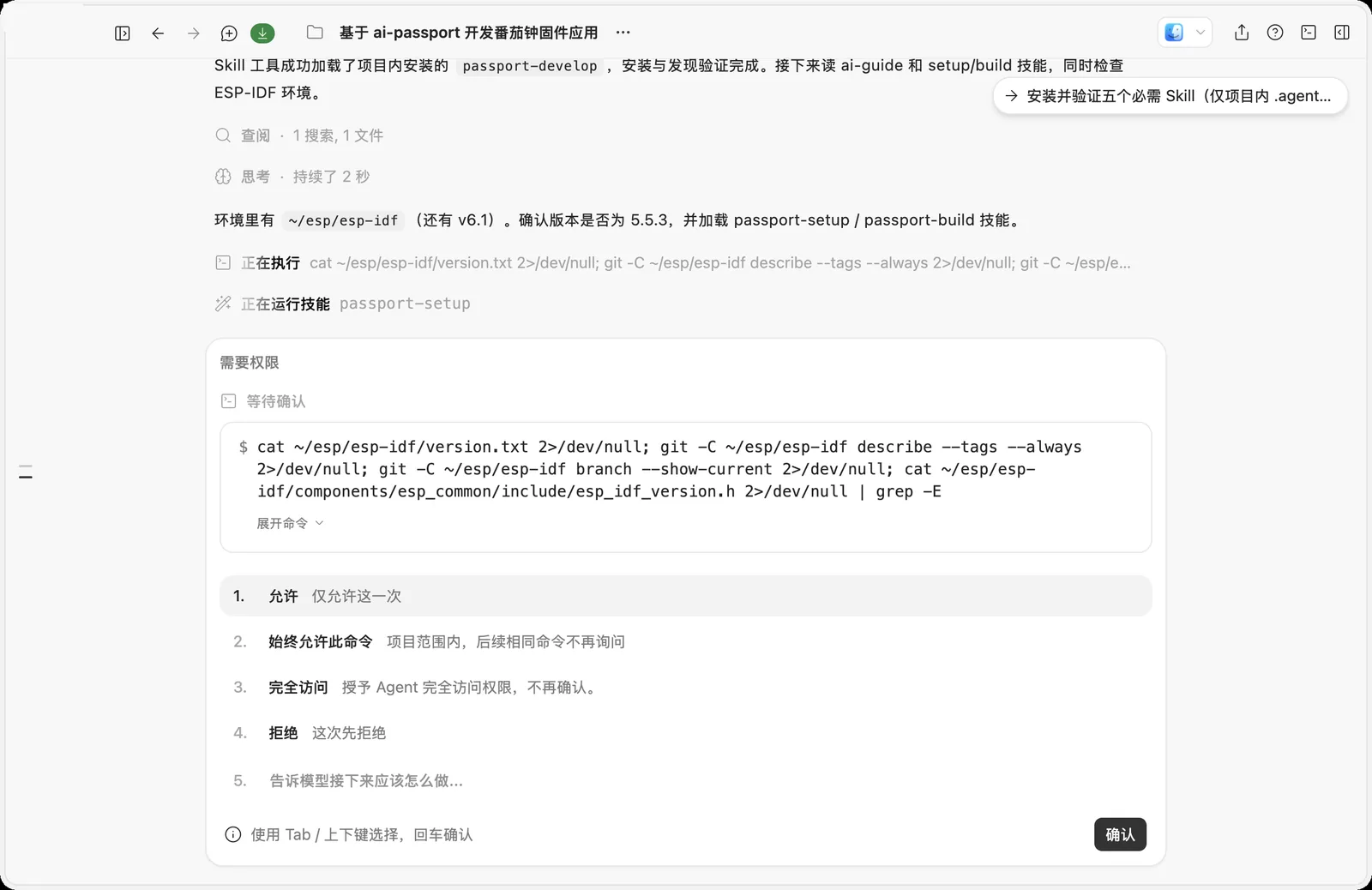
On the first run, the agent installs the Skills the project needs and checks or sets up the ESP-IDF build environment, so it takes a while. The job isn't done until you see a successful build and a firmware file path.
Review the result
This example took about 1 hour 50 minutes, including time spent on permission prompts and model reconnects. ZCode reported that the project's full validation script, ./tools/validate.sh, passed (repository checks, host tests, and the firmware build), added countdown state tests and Chinese font coverage tests, and delivered merged firmware at build/FoloToy-AI-Passport-full.bin (853,712 bytes, written at 0x0) with its SHA-256 checksum.
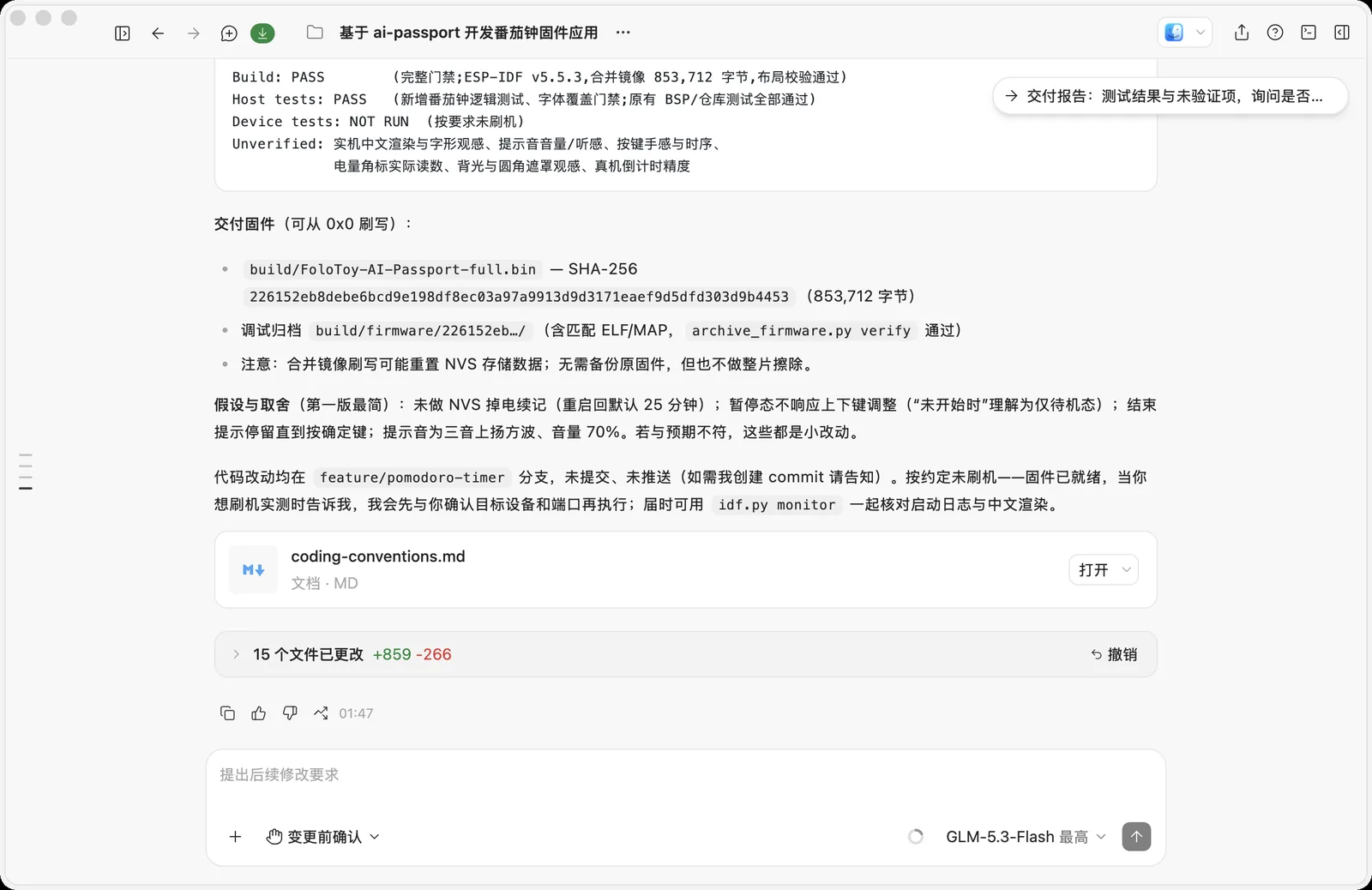
- Select 15 files changed to expand each file's changes. Undo discards all of them.
- The Chinese text uses a font ZCode generated for the app (about 117 characters). After changing any copy, ask it to regenerate the font and rerun the coverage test.
- The Unverified list covers what you must check on the device: Chinese text rendering, alert volume, button feel, battery display, and countdown accuracy.
- Assumptions and tradeoffs explains what the first version simplifies, such as returning to the default 25 minutes after a restart and not adjusting the length while paused. If that isn't what you want, ask for changes in the same task.
- When the agent asks whether to flash, reply that you don't want to flash yet if your device isn't ready.
Install it on AI Passport and test
Open the web flasher, choose the merged firmware the agent delivered (the .bin file written at 0x0), connect AI Passport with a USB-C data cable, and install it. The device restarts when it finishes. Then check the display, buttons, and sound one by one.
- Installing a new app overwrites everything currently on the device. You can restore the default firmware at any time.
- Don't unplug the cable or close the page during installation.
- Describe anything that doesn't look or respond as expected, and ask the agent for another build.
Troubleshooting
Here are issues you may run into when building AI Passport apps with ZCode:
- You see a busy-service or out-of-credit message: switch to a lighter model such as GLM-5.3-Flash, or check your GLM Coding Plan or account balance.
- You see Cannot connect to API: Connect Timeout: the task is using a custom model provider that can't be reached. Sign in to your Zhipu account, start a new task, and choose a GLM model in the model menu.
- There are too many permission prompts: choose Always allow this command for read-only commands and in-project builds and tests. Avoid Full access, which lets the agent run any command without asking.
- The model service disconnects and keeps reconnecting: stop the current turn and send "continue" in the same task. The agent picks up from the changes it already made.
- The build environment is missing: ask the agent to set up ESP-IDF 5.5.3 from the project docs. If it's already installed, point the agent to the existing Python environment with IDF_PYTHON_ENV_PATH.
- The agent wants to write outside the project, such as /tmp or the Skills folder in your home directory: choose Deny and tell it to keep all dependencies, caches, and temporary files in the project's build/ folder.