
FIELD GUIDE / 03
How to send plays to AI Passport from your phone
Complete a one-time setup on a computer, then send plays to the device over Bluetooth from the WeChat Mini Program.
STEP / 01
Step 1: install phone-ready firmware from a computer
Before sending a play from your phone for the first time, use a computer to install the latest official firmware that supports this feature. This preparation is required only once.
- A computer with Chrome or Edge
- A data-capable USB-C cable
- An AI Passport with at least 30% battery
After this step, you can change plays from your phone whenever you like without reconnecting the computer or flashing again.
1.1
Send the device page to your computer
Scan the device QR code on the back of your own AI Passport. When the page opens on your phone, copy the complete URL, send it privately to your computer, and open it in Chrome or Edge.
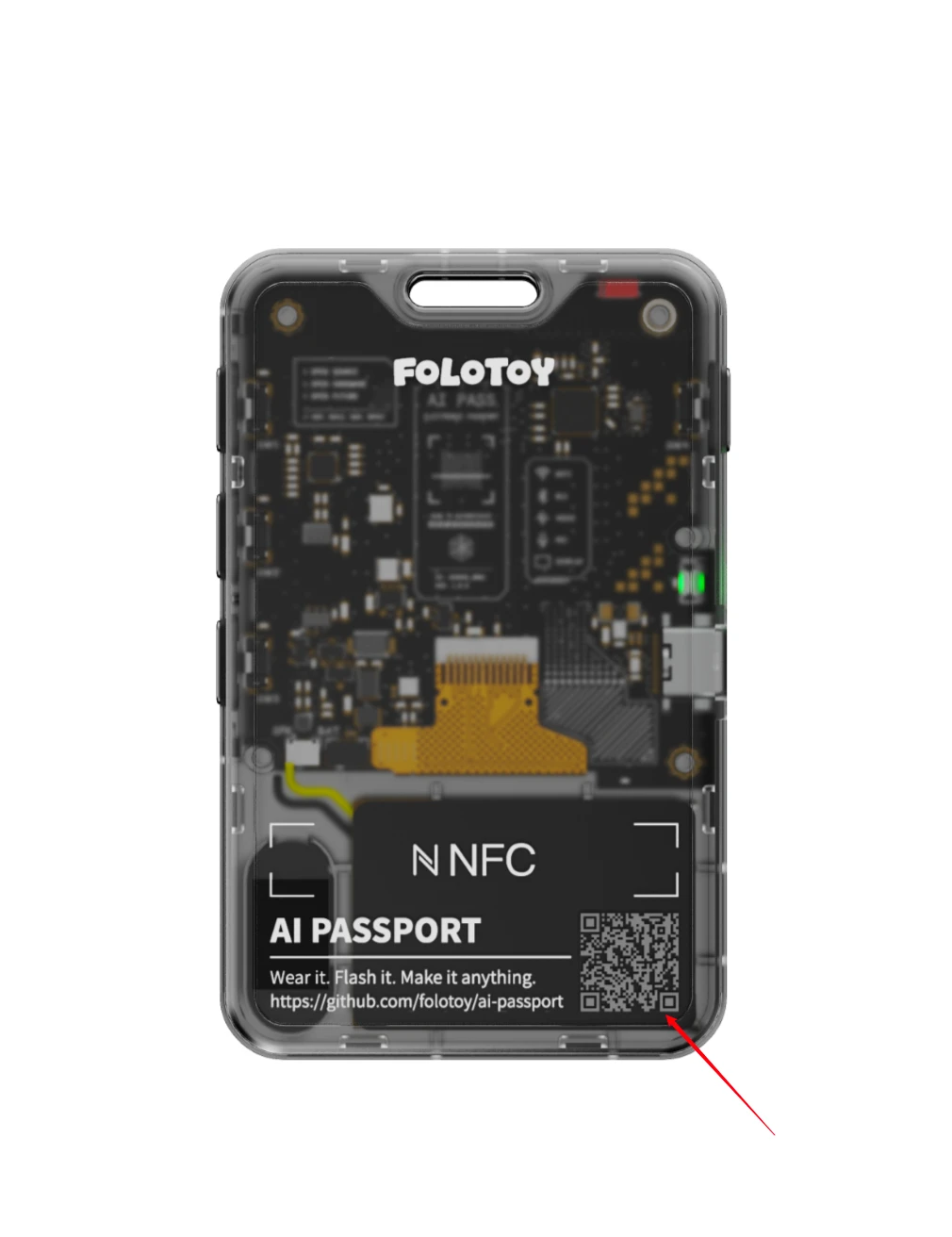
- Scan your own device, not the QR code shown in this guide
- The URL contains device identity information; send it only to your own computer
1.2
Run a full USB recovery with the latest official firmware
Connect AI Passport over USB. Scroll to the bottom of its device page, select Restore default firmware, then follow the page to verify the device and run the full recovery.
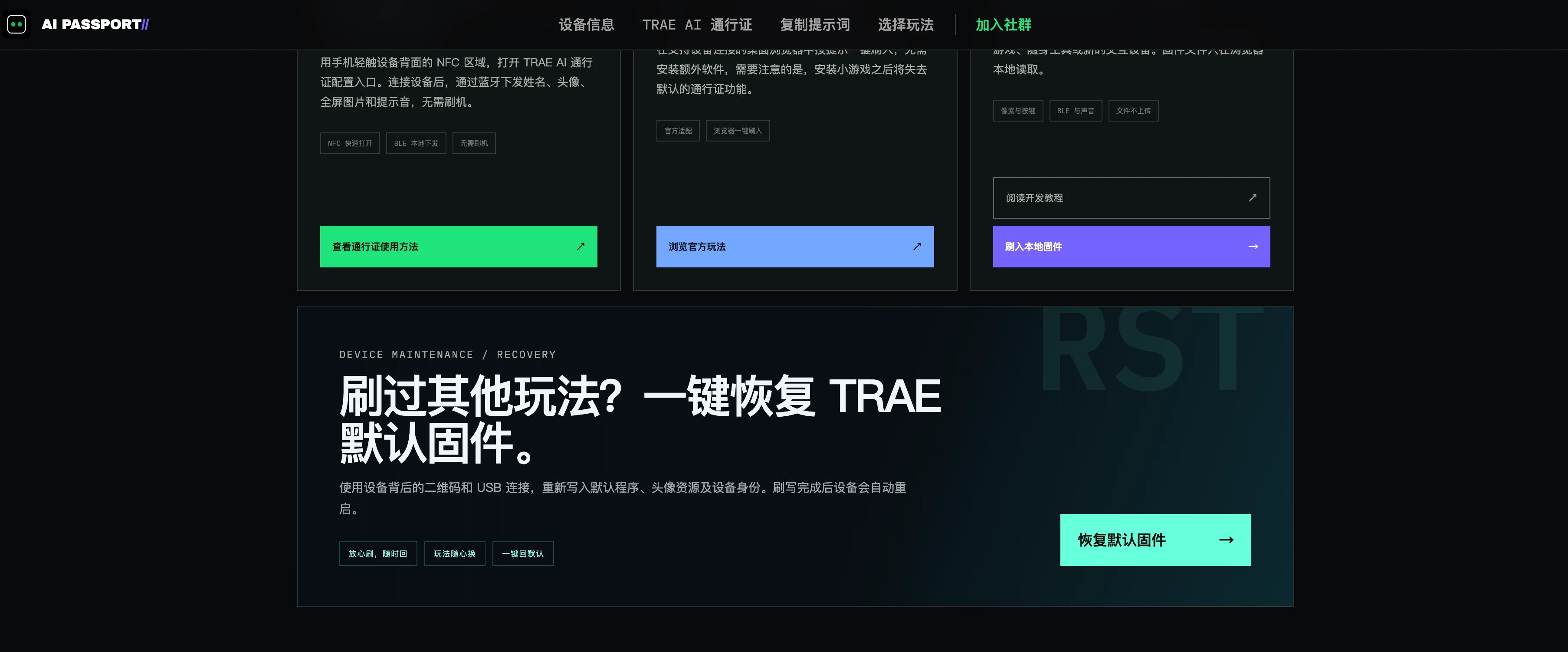
- Select Connect and verify device
- Choose only the port containing USB JTAG/serial debug unit
- Check the confirmation box, then select Run full recovery
- Unplug only after recovery succeeds and the device restarts
Do not choose a Bluetooth peripheral, headset, cu.Bluetooth, or wlan-debug port.
STEP / 02
Step 2: choose and send a play from the Mini Program
After the one-time firmware setup, start in the Mini Program whenever you want to change plays. Keep Bluetooth on and AI Passport nearby.
- No computer
- No USB cable
- Only your phone, the Mini Program, and AI Passport
The order matters: choose a play and tap Install over Bluetooth first. Put the device into Recovery Mode only when the Mini Program asks you to.
2.1
Open the Mini Program, choose a play, and tap Install over Bluetooth
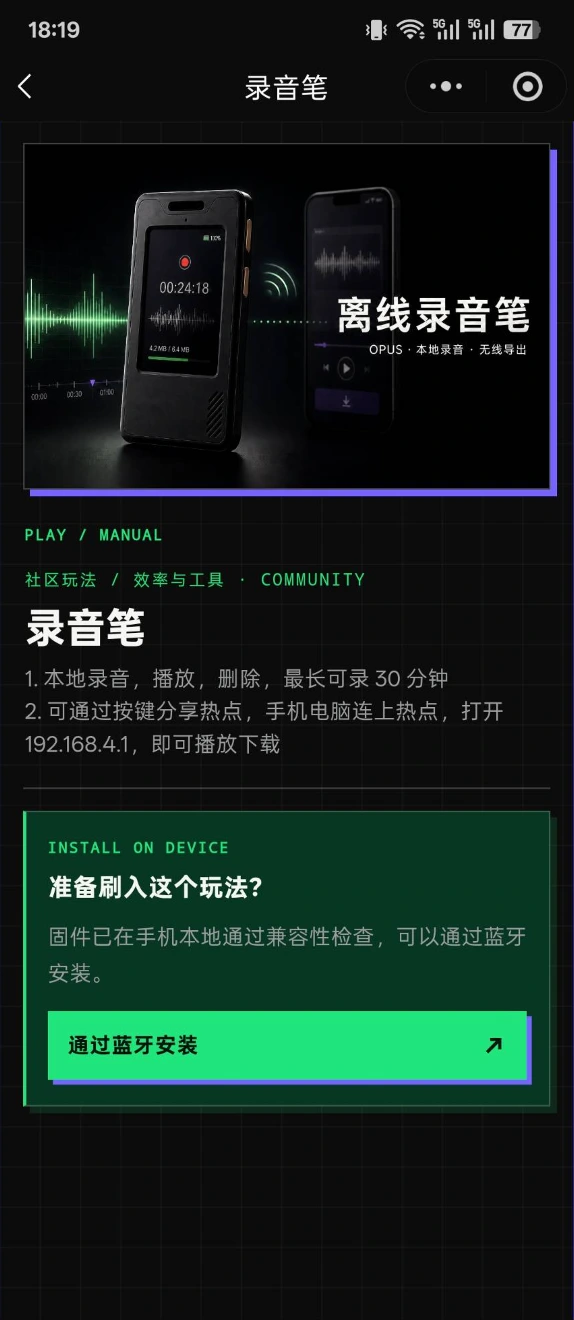
Scan the Mini Program code with WeChat and open the Play Store. Choose a play, open its detail page, then tap Install over Bluetooth.

2.2
Prepare the device when the Mini Program asks
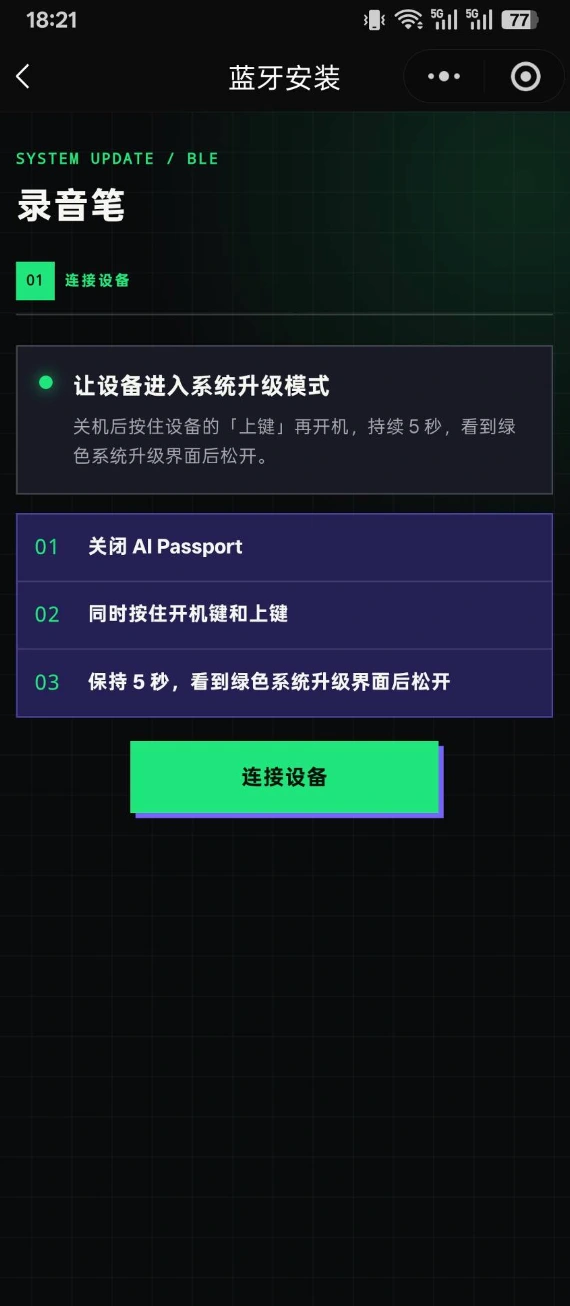
On the Bluetooth installation page, the Mini Program asks you to put the device into Recovery Mode. Stay on this page before operating AI Passport.
2.3
Power off, then hold Power and Up together
Power AI Passport off completely and confirm that the screen is dark. Hold the left Power button and the top Up button on the right together for about five seconds; release both when Recovery Mode appears.
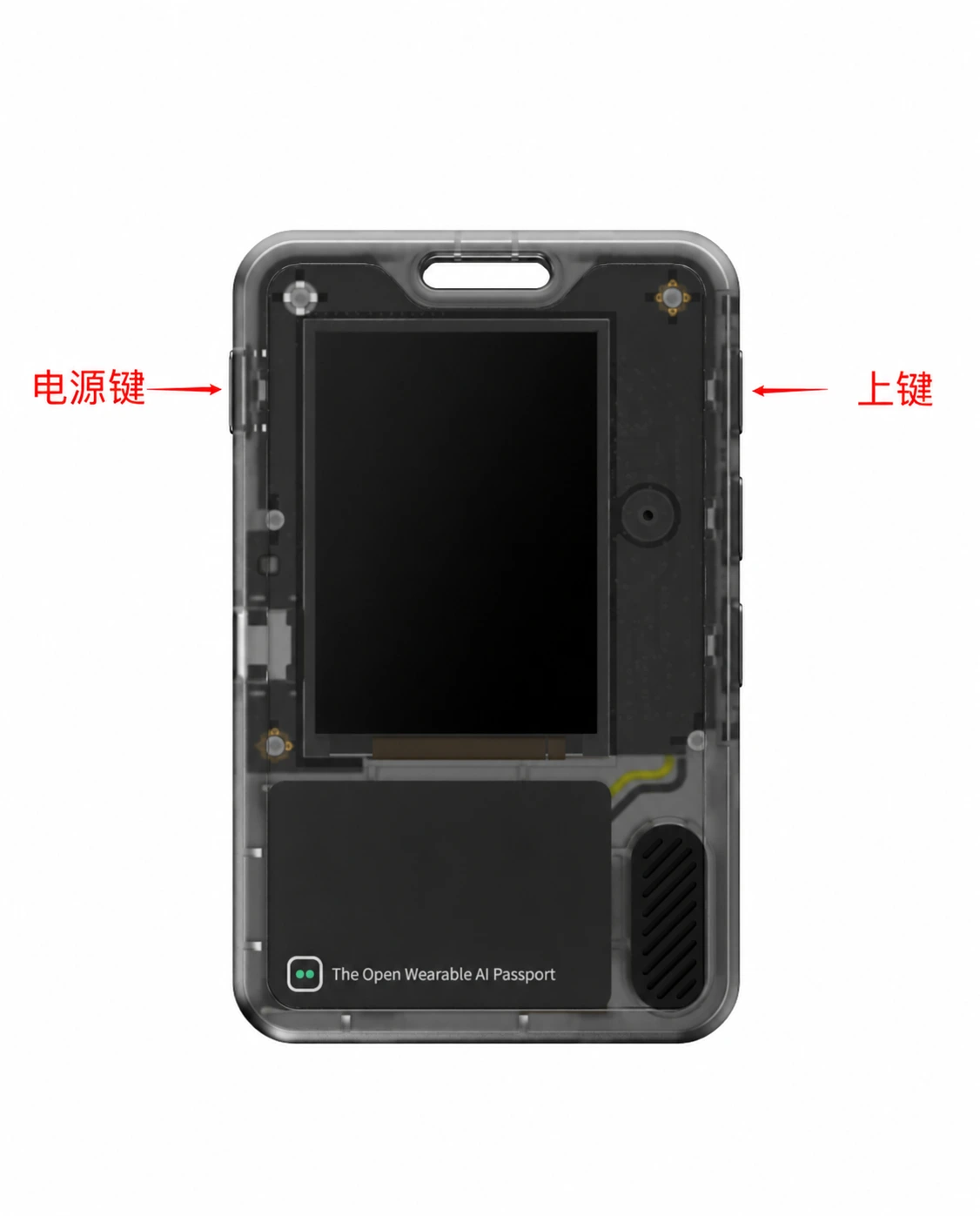
- Single button on the left: Power
- Top of the three buttons on the right: Up
- Keep Bluetooth on and the phone close to the device
2.4
Connect the device and enter its six-digit code
After Recovery Mode starts, return to the Mini Program and tap Connect device. Choose the nearby AI Passport, enter the six-digit code shown on its screen, and confirm.
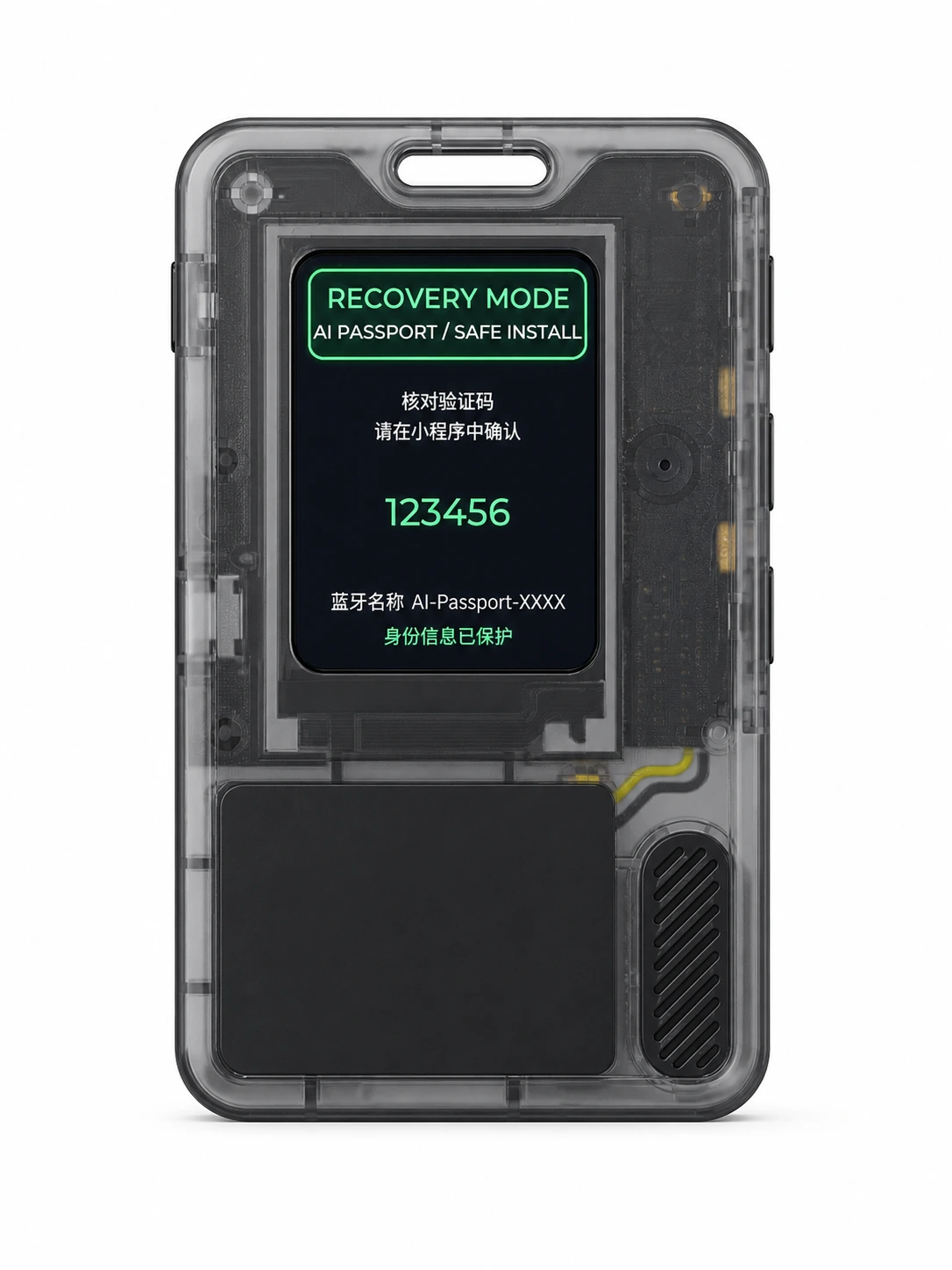
- Use the code currently shown on your device
- The code authorizes only this nearby connection
- Reconnect from the Mini Program if the code expires
The 123456 shown in the example is not a usable verification code.
2.5
Wait for the play to finish transferring
After code confirmation, the Mini Program sends the play. Wait about 1–2 minutes; AI Passport restarts automatically into the new play when transfer finishes.
- Do not leave the Mini Program or turn off Bluetooth
- Keep the device powered and near the phone
- Continue only after success or after the new play starts
If transfer fails, follow the Mini Program to enter Recovery Mode again, reconnect, and retry. Re-entering Recovery Mode does not erase the device identity.