GETTING STARTED / 09
Build an AI Passport app with DeepSeek Harness
Install DeepSeek's open-source agent workspace, add the app project as a workspace, and go from one prompt to a finished build.
Get to know DeepSeek Harness
DeepSeek Harness is DeepSeek's open-source agent workspace, available as a desktop app. It can read code, edit files, and run commands in a local workspace, and plugins extend what it can do. It's currently in public preview.
- Developer: DeepSeek
- Platforms: macOS (Apple silicon), 64-bit Windows
- Requirements: a DeepSeek account or a DeepSeek Platform API key. Preview features may change.
- Version used in this guide: 0.2.1-rc.5
Tested on macOS 26.6 (Apple silicon) on October 30, 2026, by installing the app and completing this guide's example task.
Download and install DeepSeek Harness
Download the installer from the official site: deepseek.com/harness. Use only the official download, not repackaged builds from other sources.
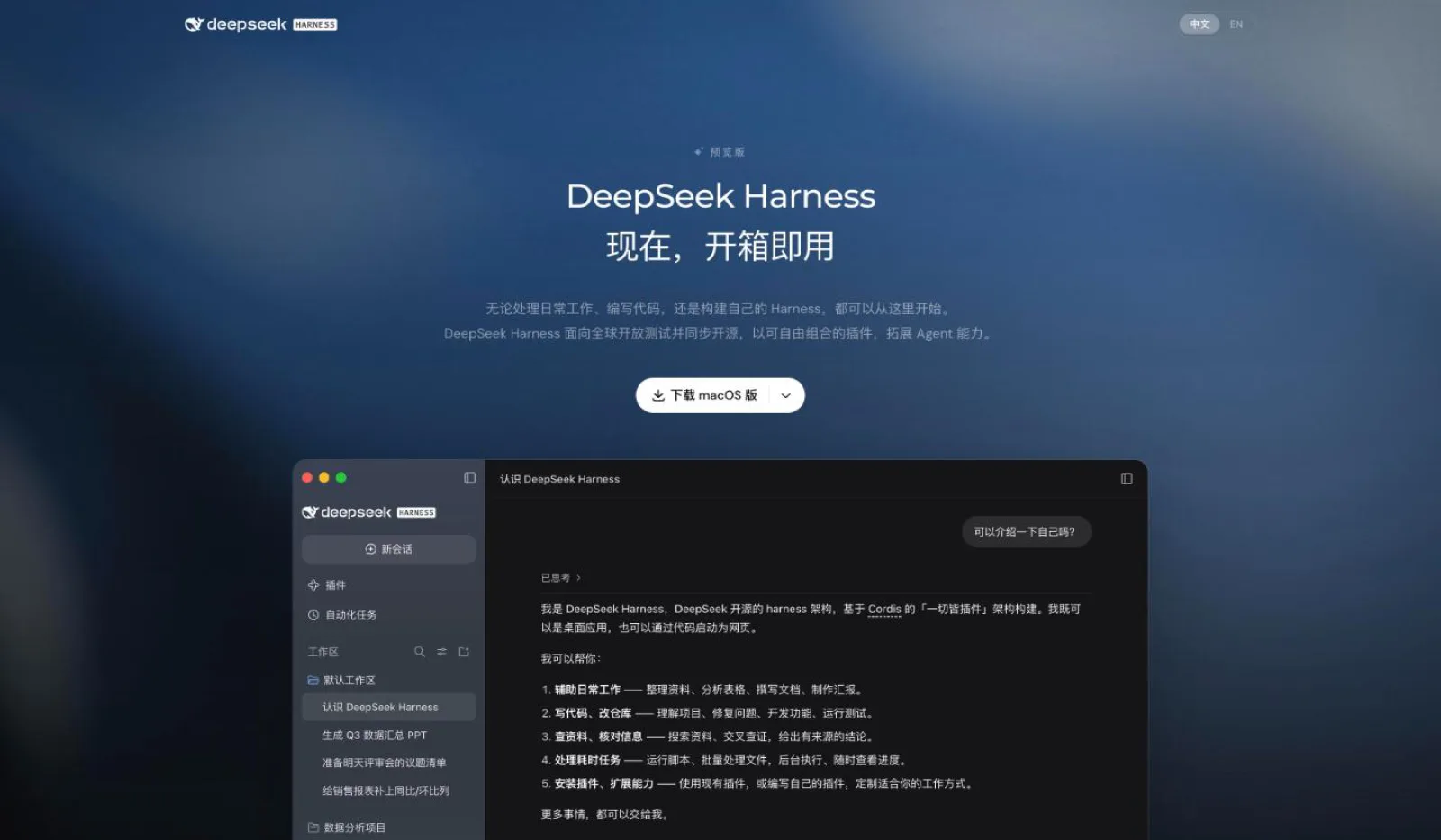
- On the official site, select Download for macOS. Windows users choose the Windows build from the menu.
- macOS: open the .dmg and drag DeepSeek Harness into Applications.
- Windows: run the .exe installer and follow the steps.
Sign in and check the model
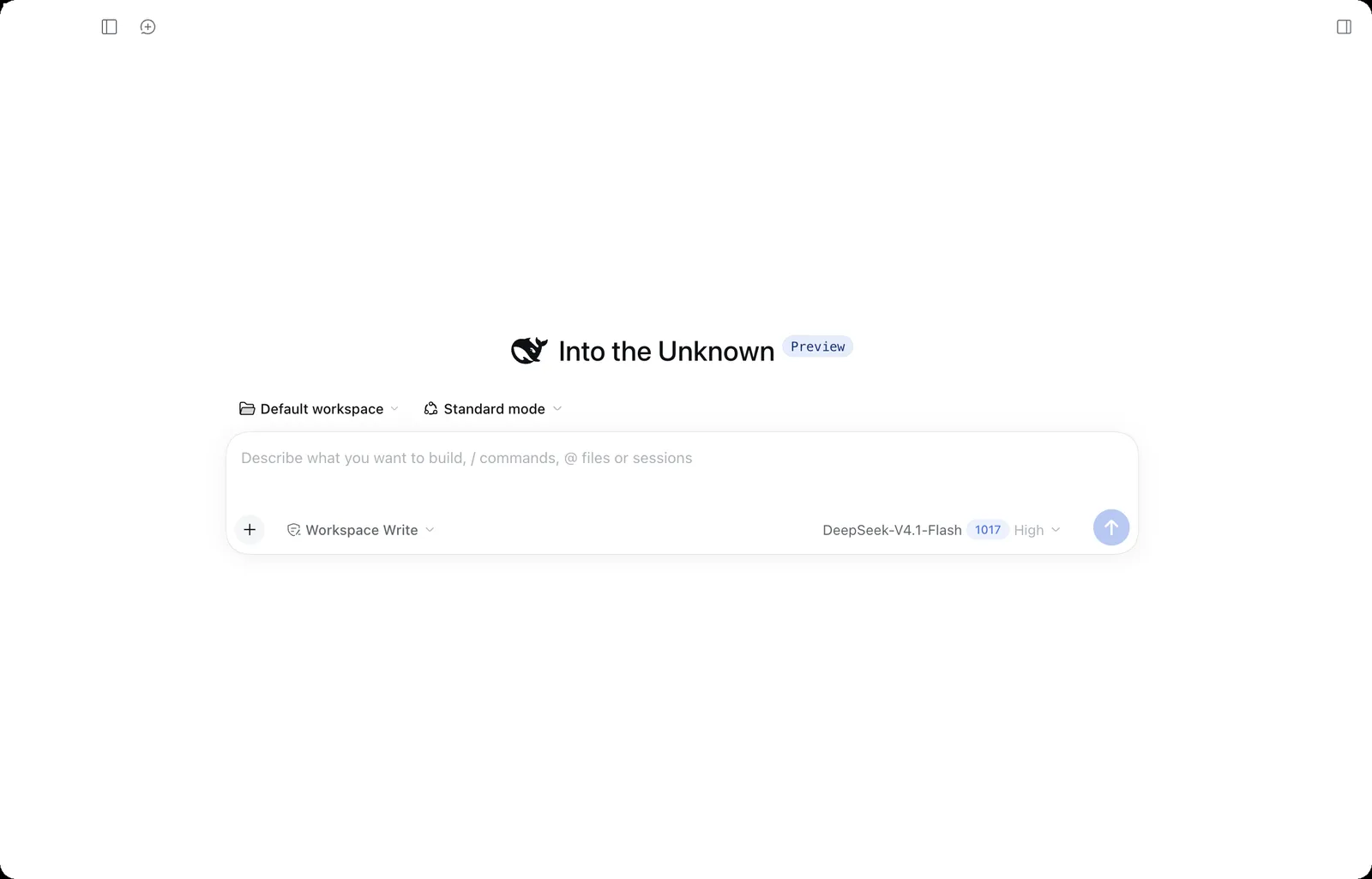
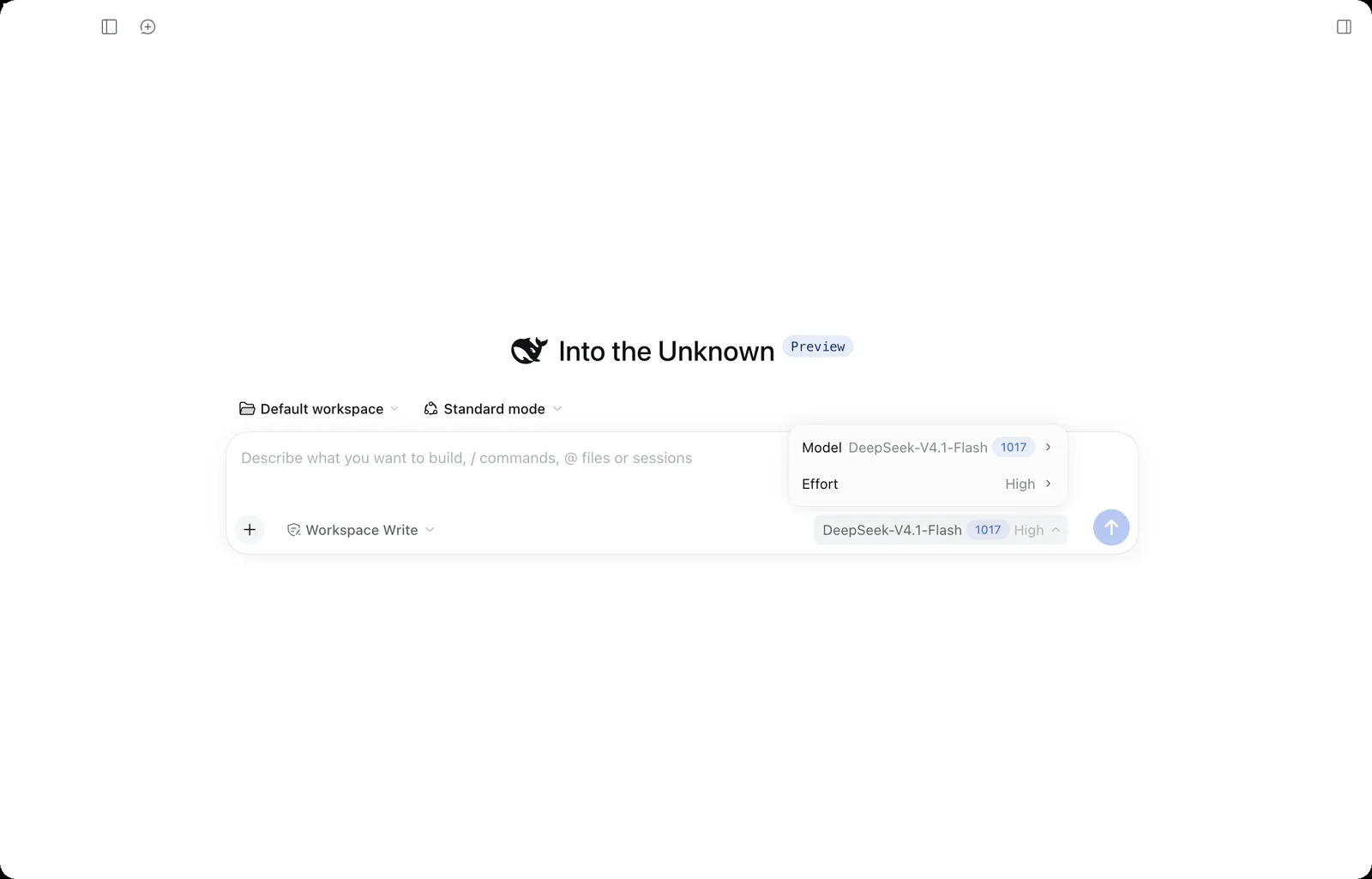
The first launch shows a welcome screen. Choose Sign in to use your DeepSeek account, or Add API Key to use a key from the DeepSeek Platform. In a session, check the model and permission mode near the message box. This guide used DeepSeek-V4.1-Flash (High) with Workspace Write, which limits edits to the current workspace.
Open the AI Passport project
Select Choose workspace, then Add workspace…, and open the AI Passport project folder in the file picker. Start a new session in that workspace.
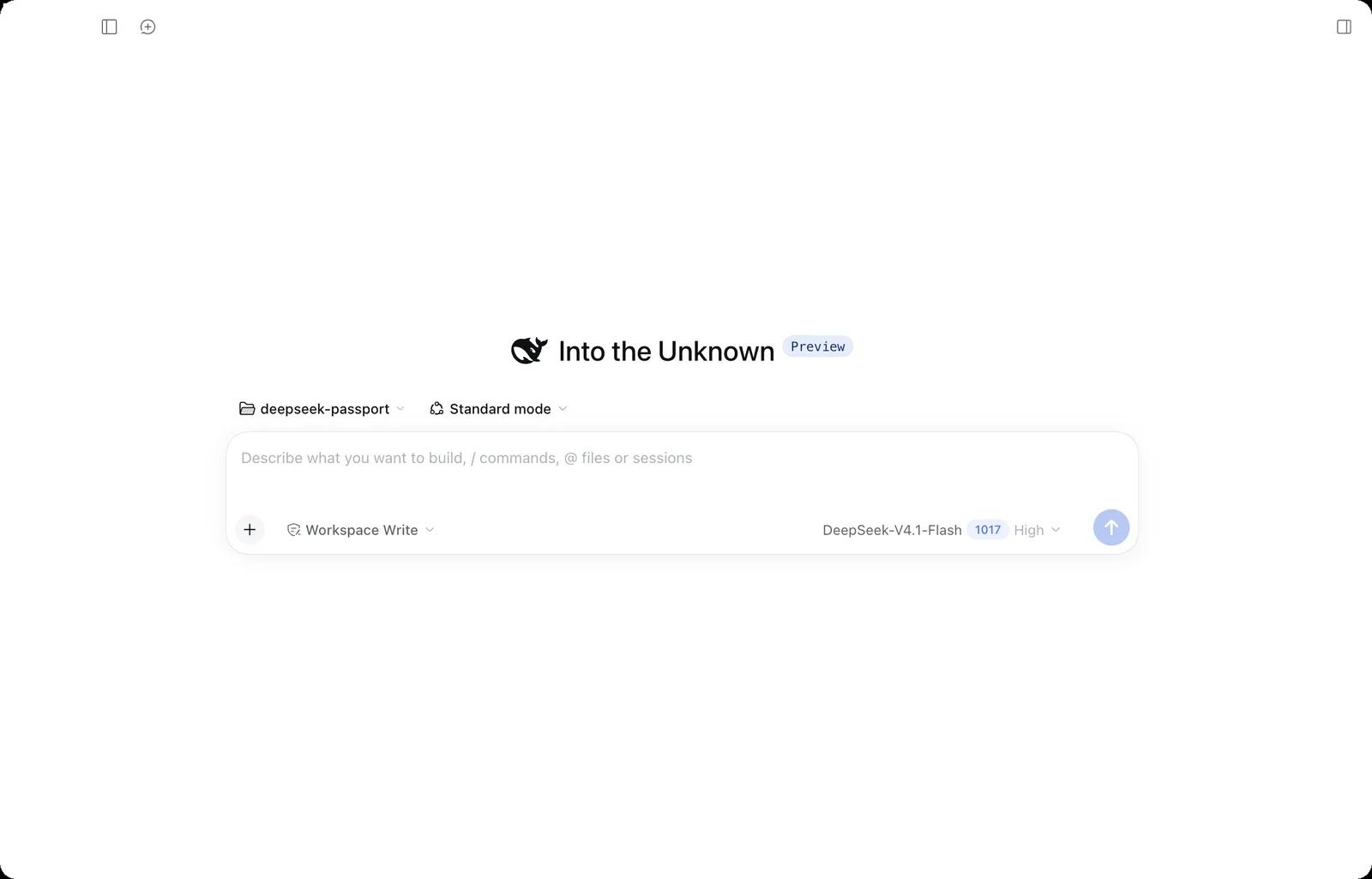
You can clone the project first with git clone https://gitee.com/FoloToy/ai-passport.git, or choose an empty folder and let the agent download the project from the prompt.
Send the build prompt
Start a new conversation, paste the prompt below, replace [ENTER APP REQUIREMENTS] with the app you want, and send it. This guide used the following example:
Build  using the complete project at https://gitee.com/FoloToy/ai-passport; reuse a local checkout if available.
Read AGENTS.md and docs/README.md first, then consult relevant documentation, hardware interfaces, and examples as needed. Prepare the environment and install the Skills required by the project.
Preserve existing changes and develop on a new branch. Reuse the BSP and design a fresh application UI instead of copying the demo; check font coverage for Chinese text. Ask when key requirements are unclear and handle the rest autonomously.
Run project validation and deliver merged firmware flashable from 0x0. Report test results and anything unverified. When finished, proactively ask whether to test on hardware; do not flash without confirmation.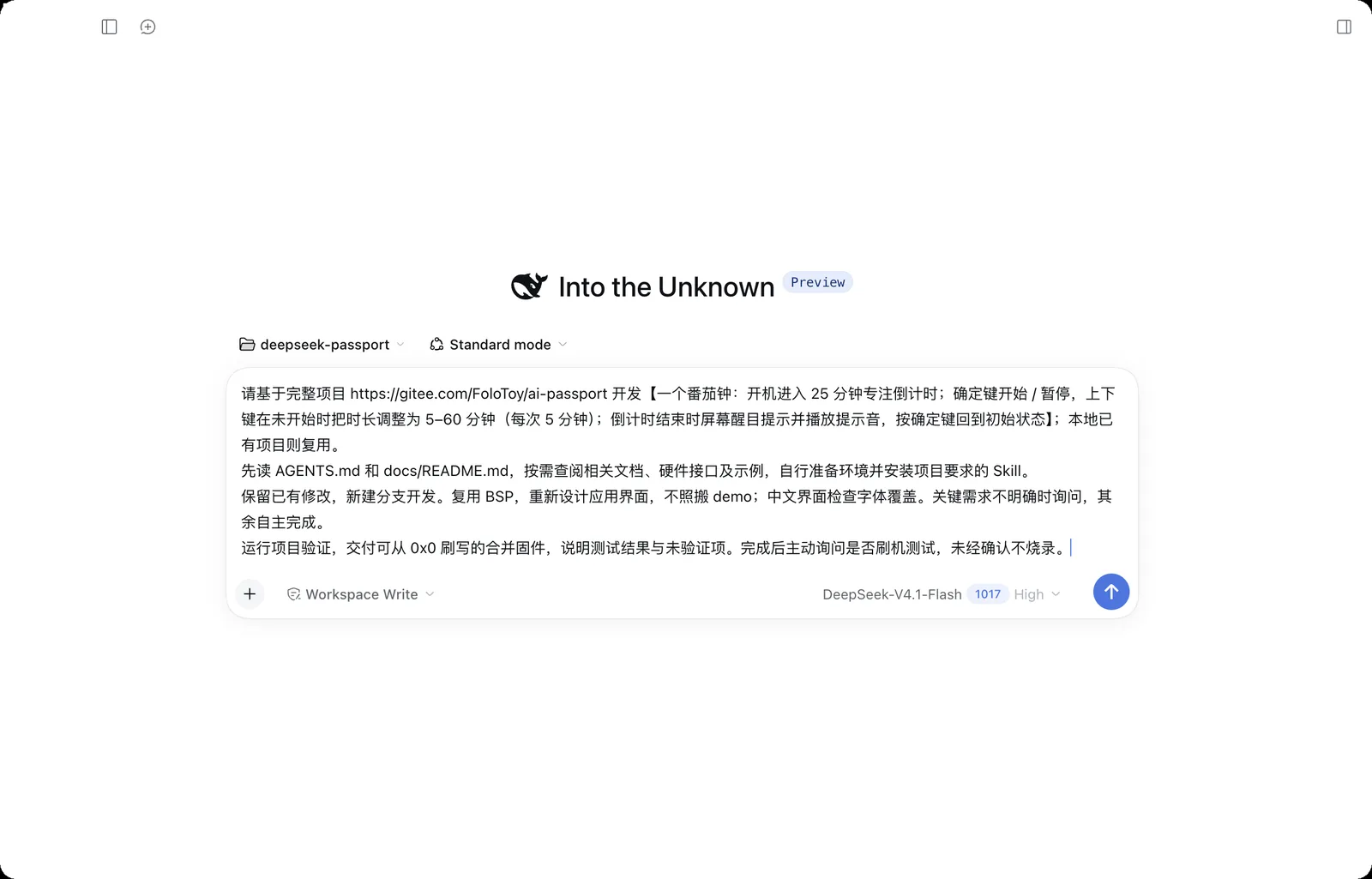
- a Pomodoro timer: start with a 25-minute focus countdown; Confirm starts or pauses it; before it starts, Up and Down change the length from 5 to 60 minutes in 5-minute steps; when time is up, show a clear alert and play a sound, and Confirm resets the timer
Let DeepSeek Harness build and check the app
DeepSeek Harness installs and checks the five passport Skills the project requires, reads AGENTS.md and the related docs, then creates a feature/pomodoro-timer branch, writes the code, and runs the project's validation scripts. The bottom of the session shows steps and usage, and Trajectory lists every command it ran.
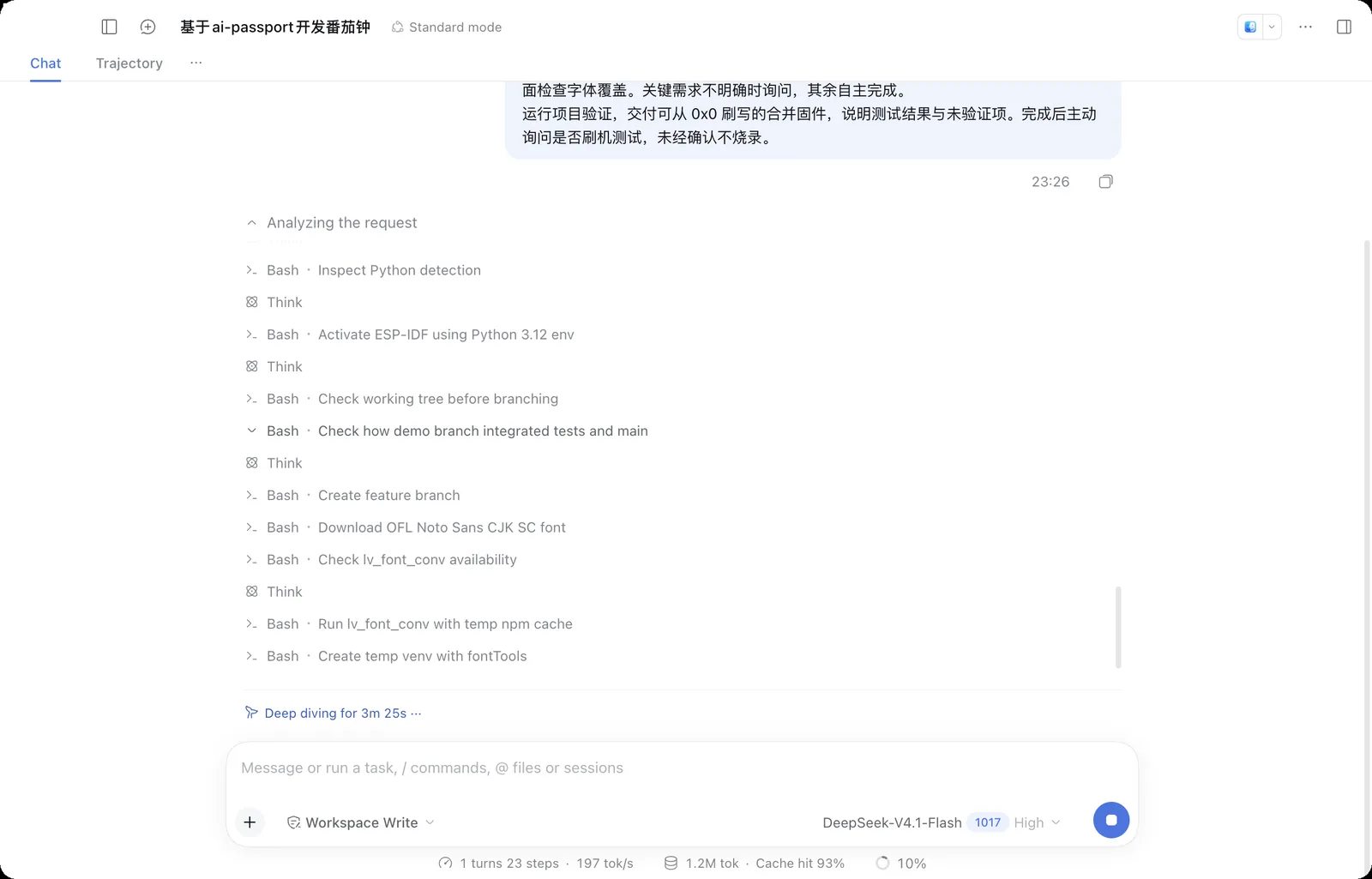
On the first run, the agent installs the Skills the project needs and checks or sets up the ESP-IDF build environment, so it takes a while. The job isn't done until you see a successful build and a firmware file path.
Review the result
This example took about 24 minutes. DeepSeek Harness reported that the build and host tests passed, including new countdown state tests and Chinese glyph coverage tests, and delivered merged firmware at build/FoloToy-AI-Passport-full.bin (893,104 bytes, written at 0x0) with its SHA-256 checksum.
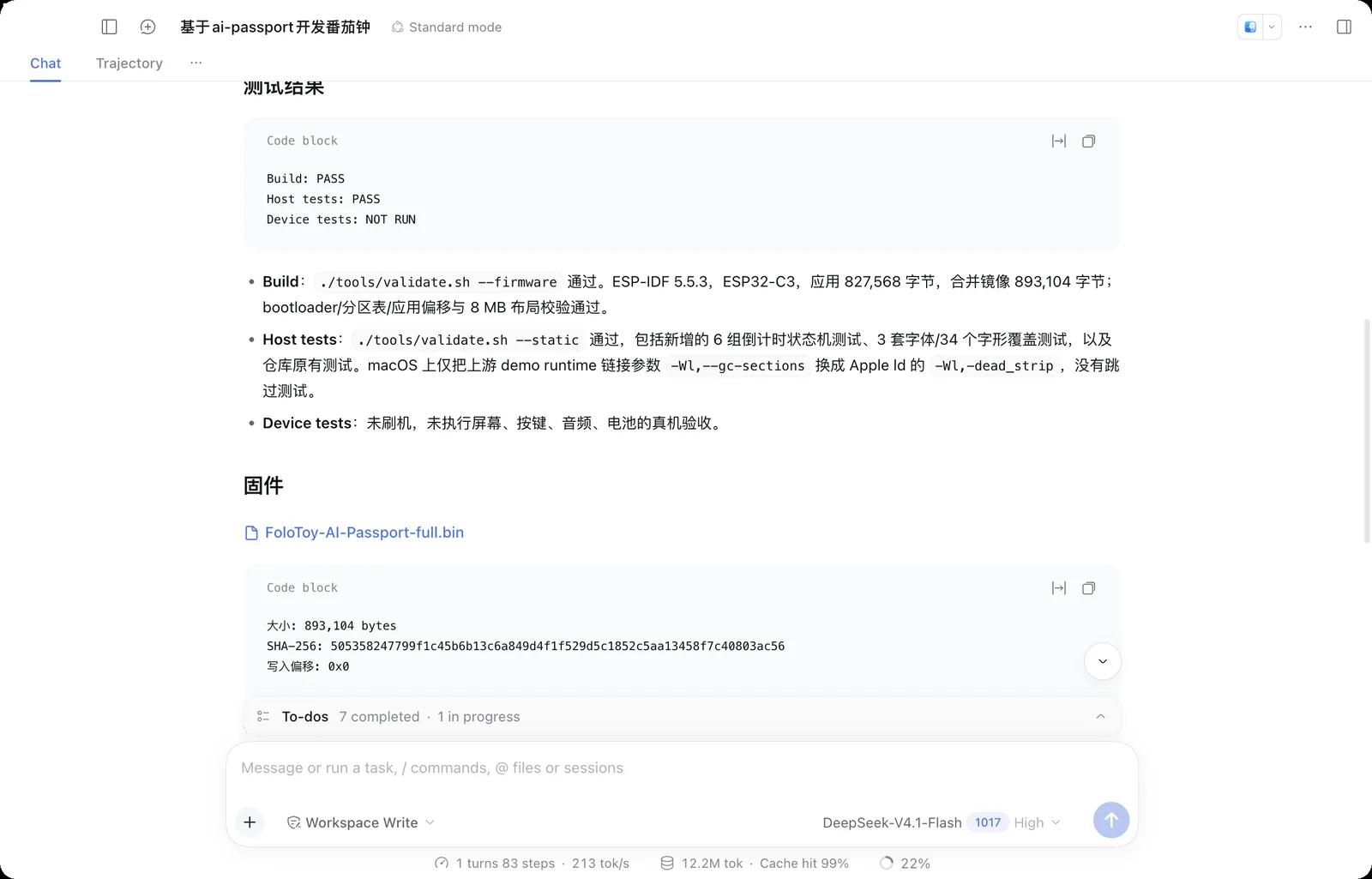
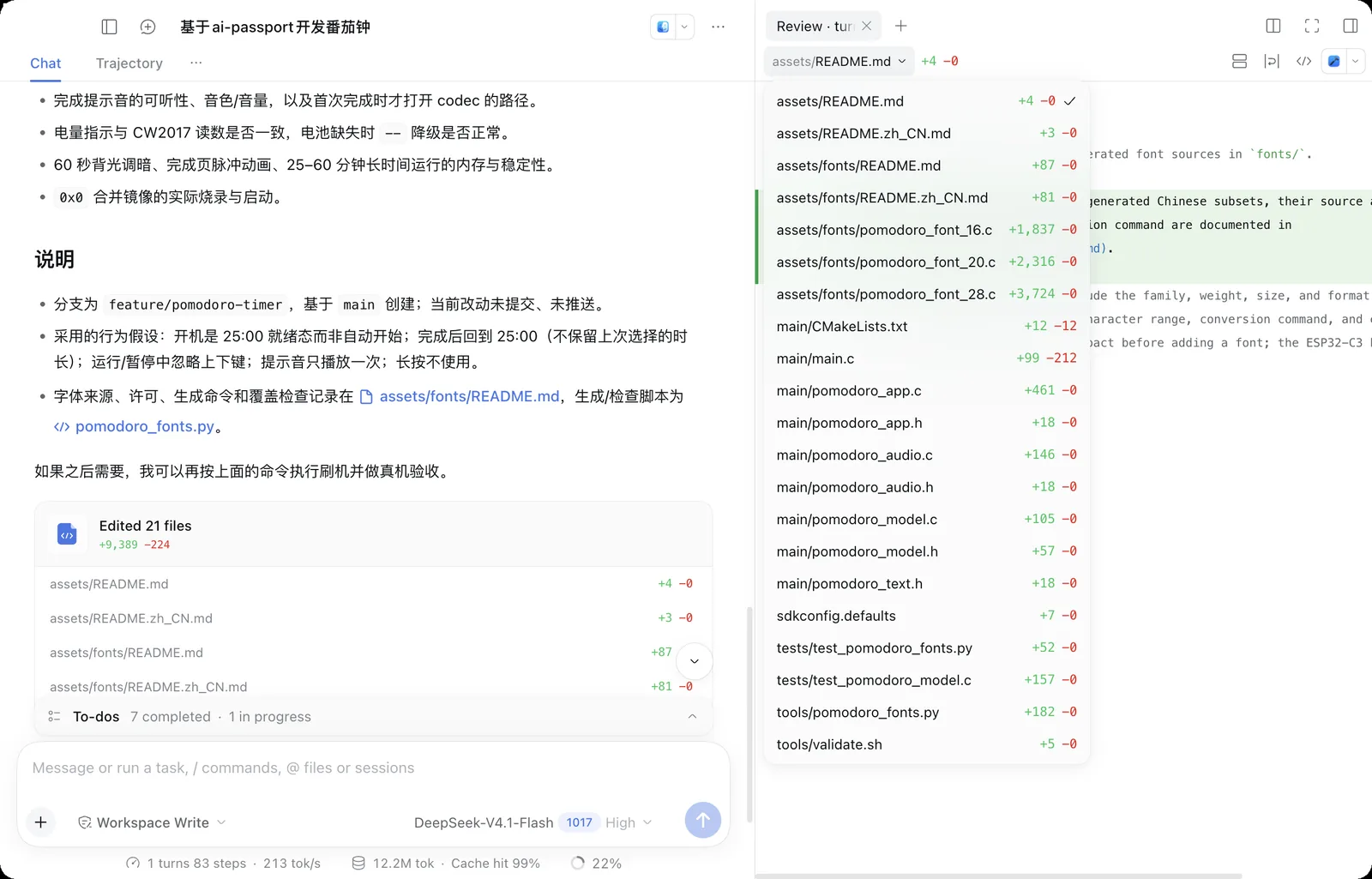
- Select Edited 21 files or open the review panel on the right to inspect each changed file and its diff.
- The Unverified list covers what you must check on the device: Chinese text rendering, buttons, sound, battery display, and long-running behavior.
- When the agent asks whether to flash with an Ask question card, the default choice may be to flash. If your device isn't ready, choose not to flash before you submit.
Install it on AI Passport and test
Open the web flasher, choose the merged firmware the agent delivered (the .bin file written at 0x0), connect AI Passport with a USB-C data cable, and install it. The device restarts when it finishes. Then check the display, buttons, and sound one by one.
- Installing a new app overwrites everything currently on the device. You can restore the default firmware at any time.
- Don't unplug the cable or close the page during installation.
- Describe anything that doesn't look or respond as expected, and ask the agent for another build.
Troubleshooting
Here are issues you may run into when building AI Passport apps with DeepSeek Harness:
- The preview looks different from this guide: follow the official site and in-app instructions.
- The app stops at the welcome screen: choose Sign in, or Add API Key to enter your own key. Enter the key only in the app, never in the chat.
- The build environment is missing: ask the agent to set up ESP-IDF 5.5.3 from the project docs. If it's already installed, point the agent to the existing Python environment with IDF_PYTHON_ENV_PATH.
- On macOS, the linker rejects --gc-sections: this is a known macOS difference in the project's host tests. The agent switches to -dead_strip and keeps testing, and the firmware build isn't affected.
- Download only from deepseek.com. Several unofficial desktop builds use the same name.